

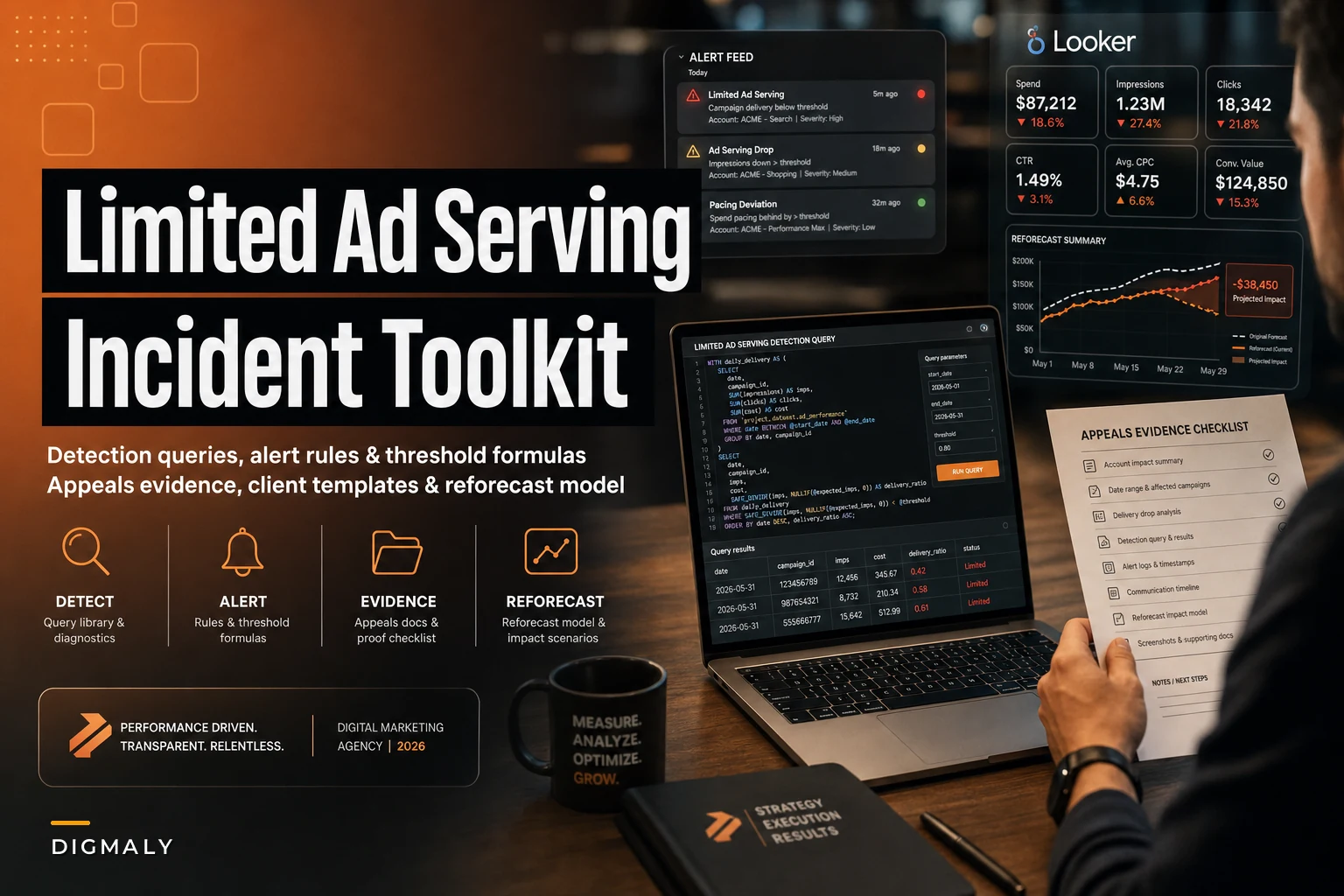

Most agencies find out about Limited Ad Serving the hard way — a client emails asking why conversions dropped, and someone spends twenty minutes digging around before realizing the account got flagged days ago. By then you've already lost spend, momentum, and a bit of trust.
This is the companion piece to the strategic side of handling throttling. If you want the operational framework and first-response steps, that's covered in Responding to Google's August 2026 'Limited Ad Serving' Expansion. This post is the opposite — it's the toolkit. Queries you can paste, thresholds you can set, filenames you can copy, templates you can send. Less theory, more things to drop into your workflow before Friday.
Everything below assumes you already know what Limited Ad Serving is and why it hurts. We're skipping the explainer and going straight to the parts that save time when an account is actually bleeding.
Detection queries: catch it before the client does
The whole point of a Limited Ad Serving detection toolkit is speed. Finding a throttled account in 3 hours versus 3 days is usually the difference between a quick appeal and a lost quarter.
Here's the MCC-level Google Ads API query worth running as a daily sweep across all linked accounts. It surfaces accounts where impressions have collapsed relative to their own recent baseline — almost always the first visible symptom.
-- Google Ads Query Language (GAQL) -- Run per-account under MCC; compare yesterday vs trailing 7-day avg SELECT customer.id, customer.descriptivename, metrics.impressions, metrics.clicks, metrics.costmicros, segments.date FROM customer WHERE segments.date DURING LAST14DAYS ORDER BY segments.date DESC
Pull that into BigQuery and run the actual anomaly logic there — GAQL isn't great at window functions, but BigQuery is. This query flags any account whose yesterday impressions dropped more than 60% below its trailing 7-day median:
-- BigQuery: impression collapse detector
WITH daily AS (
SELECT
customerid,
date,
impressions,
PERCENTILECONT(impressions, 0.5)
OVER (PARTITION BY customerid
ORDER BY UNIXDATE(date)
RANGE BETWEEN 7 PRECEDING AND 1 PRECEDING) AS median7d
FROM project.ads.accountdaily
)
SELECT
customerid,
date,
impressions,
ROUND(median7d, 0) AS baseline,
ROUND(SAFEDIVIDE(impressions, median7d) - 1, 2) AS pctchange
FROM daily
WHERE date = DATESUB(CURRENTDATE(), INTERVAL 1 DAY)
AND impressions < median7d * 0.40
ORDER BY pct_change ASC
One thing worth noting: impression collapse alone throws false positives on low-budget accounts and weekend-heavy B2B accounts. Pair it with a second signal — a sudden spike in "eligible (limited)" ad statuses. If you're exporting ad-level status from the API, count how many ads flip to a limited state within a 24-hour window. Two signals firing together is far more reliable than either one alone.
For the Looker side, the cleanest build is a single tile per client showing impressions-vs-baseline as a ratio, color-coded. Green above 0.8, amber 0.4–0.8, red below 0.4. Account managers don't read tables at a glance, but they absolutely read a wall of red.
Quick visual of the detection workflow:
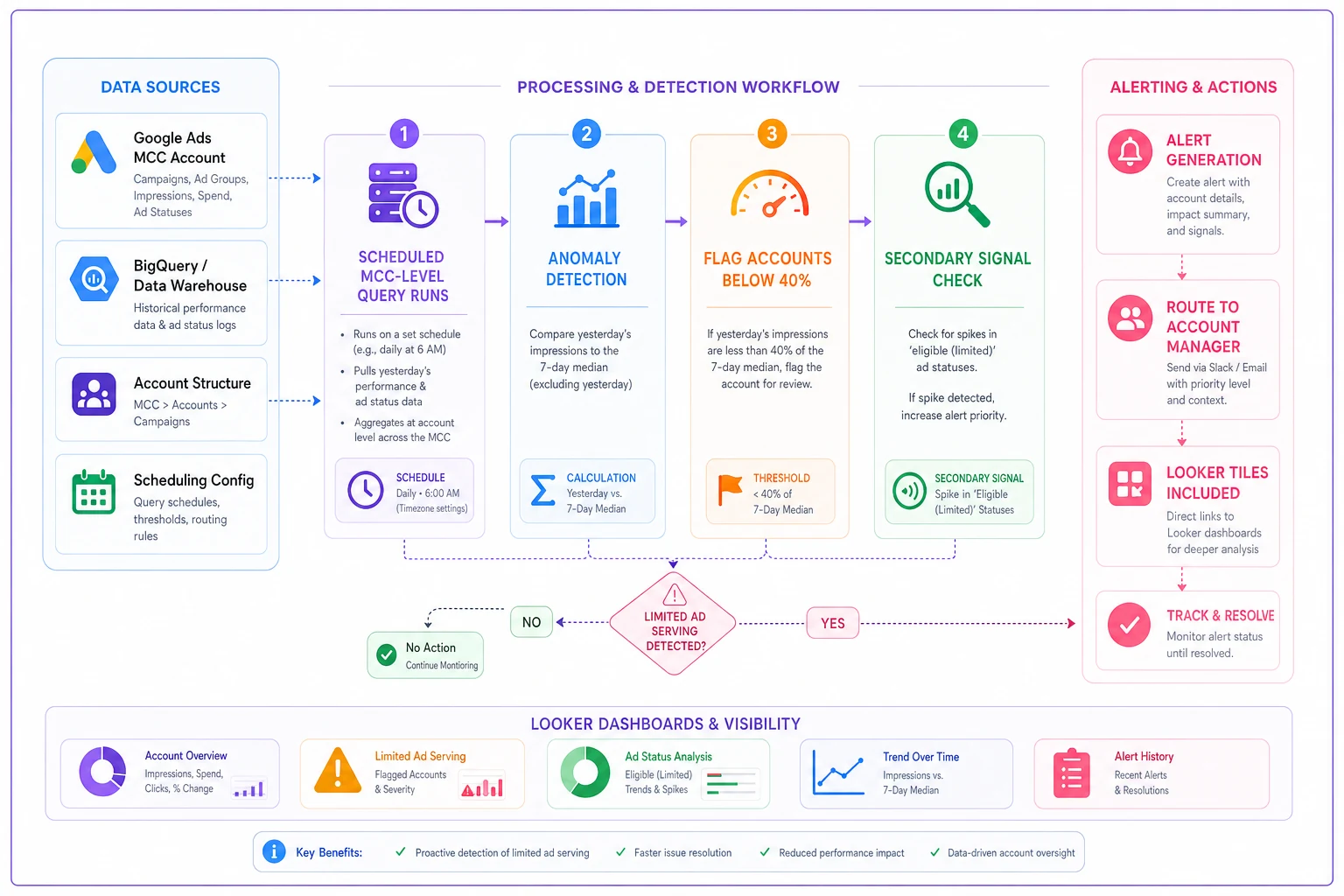
A simple flowchart like this makes it obvious where automation stops and human review starts.
Alert rules and threshold formulas
Queries only help if something is watching them. Here are the alert rules worth wiring up, with actual threshold math rather than vague "set up an alert" advice.
Eliminate marketing chaos with streamlined campaign control.
Digmaly lets you plan, execute, and track every campaign effortlessly.
- Unified campaign management
- Real-time client reporting
- Collaborative team workflows
No credit card required
| Signal | Threshold formula | Severity | Who gets pinged |
|---|---|---|---|
| Impression collapse | todayimpr < 0.40 × median7d | High | AM + ad ops |
| Limited ad status spike | limitedadstoday ≥ 3 × avglimited7d AND ≥ 5 ads | High | Ad ops |
| Cost drop with stable budget | costtoday < 0.50 × avgcost_7d AND budget unchanged | Medium | Ad ops |
| Conversion cliff | convtoday = 0 AND conv7d_avg ≥ 3 | Medium | AM |
| New account, zero serving | accountage < 14d AND impr72h = 0 | High | Onboarding lead |
Keep high-severity alerts loud and medium ones batched into a morning digest.
A couple of notes from running these in practice. The "cost drop with stable budget" rule is underrated — it catches throttling even when impressions look noisy, because a limited account simply can't spend what it's been allocated. If budget is $200/day and the account spent $38 yesterday with no manual changes, something is wrong regardless of what the impression graph says.
Keep high-severity alerts loud and medium ones batched into a morning digest. If everything pages everyone, people mute the channel within a week, and then your detection setup is worth nothing.
UI export walkthrough and filename convention for appeals
When you file an appeal, Google's reviewers respond better to clean evidence than to a wall of unstructured context. The problem is most agencies screenshot things randomly and can't find them two days later. A filename convention fixes this immediately.
-
In the Google Ads UI, go to the account overview and set the date range to the 30 days before the limitation started.
-
Export the account performance view (impressions, cost, conversions) as CSV.
-
Go to Ads & assets → Ads, filter by status "Eligible (limited)," export the list.
-
Go to the Policy manager and screenshot the specific policy flag and its description.
-
Export billing summary showing payment method verified and no failed charges.
-
If relevant, pull the landing page URL and capture a full-page screenshot showing the live page matches the ad claims.
Filename convention — the point being that anyone on the team can read it later without opening the file:
{clientcode}{accountid}{evidence-type}{YYYYMMDD}.ext Examples: acme1234567890perf-export20260815.csv acme1234567890limited-ads20260815.csv acme1234567890policy-flag20260815.png acme1234567890billing-verified20260815.png acme1234567890lp-screenshot20260815.png
This matters more than it looks. Appeals often go through multiple rounds. By round two you've got fifteen files, and if they're named Screenshot (47).png you will send the wrong one to Google. The convention also makes it easy to attach a tidy folder to your internal ticket.
Appeals evidence checklist
Before you submit anything, run this list. Missing evidence is the most common reason appeals stall or bounce back for "more information."
-
- [ ] Account performance export showing the drop timeline —
perf-export_YYYYMMDD.csv -
- [ ] List of limited ads with their exact status —
limited-ads_YYYYMMDD.csv -
- [ ] Policy flag screenshot from Policy Manager —
policy-flag_YYYYMMDD.png -
- [ ] Billing verification showing valid payment + no failed charges —
billing-verified_YYYYMMDD.png -
- [ ] Business verification status if the account is unverified —
biz-verification_YYYYMMDD.png -
- [ ] Landing page full-page capture proving claim/content alignment —
lp-screenshot_YYYYMMDD.png -
- [ ] Ad copy vs. landing page comparison if the flag is about misrepresentation —
copy-lp-compare_YYYYMMDD.pdf -
- [ ] Corrective action note — a one-paragraph plain-text description of what you fixed and when
That last one matters more than it seems. Reviewers want to see that something changed, not just that you disagree with the flag. "We removed the unsupported '#1 rated' claim from headline 3 on Aug 15 and updated the landing page footer to match" lands much better than "we believe this was a mistake."
Client communication templates
Communication is where agencies lose accounts during an incident — not the incident itself. Clients can forgive a platform problem. They don't forgive silence. Here are four templates, trimmed to the point.
1. Initial alert (send within hours, not days)
> Hi [Name] — flagging something proactively. Google has applied a serving limitation to your ad account as of [date], which is temporarily reducing how often your ads show. We caught it through our monitoring, not through a performance drop you noticed, and we're already on it. Expect a status update from us by [time/date]. Short version: we know the cause category and we're preparing an appeal.
2. Status update (while the appeal is in flight)
> Quick update on the serving limitation. We've submitted an appeal to Google with supporting documentation on [date]. These reviews typically take [X] business days. In the meantime we've [specific action — e.g., shifted budget to your Meta campaigns / paused the flagged ads so the rest of the account serves normally]. No action needed on your end. Next update [date].
3. Revised forecast (when the throttling will affect the month)
> Wanted to give you a realistic picture while this resolves. Based on the serving limitation, we're adjusting this month's projection from roughly [X] conversions to [Y]. The gap is almost entirely the throttled period, not underlying performance. If the appeal clears by [date], we expect to recover most of the pace in the back half of the month. Full reforecast attached.
4. Closure (when it's resolved)
> Good news — the serving limitation on your account has been lifted as of [date]. Ads are serving normally again. Here's what happened, what we fixed, and what we've put in place to catch anything similar faster next time: [2–3 bullets]. Happy to walk through it on our next call.
The pattern across all four: you found it, you own it, and you always name the next update time. Vague reassurance reads as panic. A specific next-update date reads as control.
The 7–30 day reforecast model
When serving is limited, the original forecast is dead, and clients can smell a made-up number. You need a defensible reforecast. Here's the stepwise model with a worked example.
The steps:
-
Establish the pre-incident daily run rate (trailing 14-day average, excluding the drop days).
-
Count days throttled and estimate the serving reduction factor during that window.
-
Calculate lost conversions during the throttled period.
-
Estimate the recovery ramp — accounts rarely snap back to 100% on day one.
-
Project remaining-month conversions under the recovery curve.
-
Compare against the original forecast to show the net gap.
Worked example. Say a lead-gen account normally runs about 6 conversions/day. The limitation hit on day 10 of a 30-day month and the account served at roughly 35% during the throttled window. The appeal clears on day 17.
-
Pre-incident run rate
~6/day
-
Days throttled (day 10–17)
7 days
-
Serving during throttle
6 × 0.35 = ~2.1/day → ~14.7 conversions over 7 days
-
Normal would've been
6 × 7 = 42 → lost ~27 conversions
-
Recovery ramp (days 18–20 at 60%, 70%, 85%, then full)
a gradual climb back rather than instant
-
Days 18–20
(6×0.6)+(6×0.7)+(6×0.85) = ~12.3
-
Days 21–30 at full
6 × 10 = 60
-
Revised month total ~54 (days 1–9) + 14.7 + 12.3 + 60 ≈ 141 vs. ~180 original
Preincidentrate = AVERAGE(trailing14dexcldrop) Throttledactual = Preincidentrate servingfactor daysthrottled Throttledexpected = Preincidentrate daysthrottled Lostconversions = Throttledexpected - Throttledactual Rampdayn = Preincidentrate ramppctn Revisedtotal = SUM(predays) + Throttledactual + SUM(rampdays) + SUM(fulldays)
Build the ramp percentages as editable cells. The honest move is to show the client the assumptions, not just the output number. When they can see the 60/70/85% recovery curve, the forecast stops feeling like an excuse and starts feeling like a plan.
Smart Bidding mitigation recipes
Throttling wrecks Smart Bidding because the algorithm loses volume and starts making decisions on thin data. A few things that limit the damage:
-
Don't yank the bid strategy immediately. Switching from Target CPA to Manual CPC mid-incident throws away learning you'll want back. Only switch if serving is near-zero for 72+ hours.
-
Loosen targets slightly rather than resetting. On tCPA, raising the target 15–20% during throttling can keep some eligible auctions in play without blowing up the model.
-
Protect the conversion signal. If the account can only serve a little, point that limited serving at your highest-intent campaigns rather than letting it spread thin across everything.
-
Avoid budget cuts on the throttled campaigns. Cutting budget on top of throttling double-penalizes the strategy's data. Leave budgets and let the limitation be the only constraint.
-
Log the incident window. When the account recovers, annotate the dates so your post-recovery performance review doesn't blame the throttling period on the bid strategy.
The mistake that comes up most: rebuilding campaigns during the limitation. You end up with brand-new campaigns re-entering learning right as serving is restored, and now you've got two problems instead of one.
Cross-channel reallocation playbook
While an appeal is pending, idle budget is wasted budget. But reallocating badly just creates a second mess to clean up.
-
Identify recoverable spend. If Google was pacing $300/day and now spends $90, you have roughly $210/day looking for a home.
-
Move it to channels that can absorb it without re-learning. Meta and existing stable campaigns absorb incremental budget better than a cold new channel.
-
Cap the reallocation at what the receiving channel can efficiently spend. Dumping $210/day into a Meta account that normally runs $100 will spike CPA and make your reforecast worse.
-
Reallocate temporarily, and label it. Note that this is incident-driven so you can reverse it cleanly when Google serving returns.
-
Track incremental results separately. You want to know what the reallocated spend actually produced — for the client conversation and for next time.
Don't reallocate into a brand-new channel during an incident. Launching Pinterest or a fresh TikTok campaign under time pressure, with no tracking shakedown, is how you turn one fire into two.
Vertical runbooks for high-risk categories
Some verticals get throttled more often, and the appeal evidence differs. Quick reference:
| Vertical | Common flag trigger | Evidence that resolves fastest |
|---|---|---|
| Healthcare / supplements | Unsupported health claims | Claim substantiation docs, edited ad copy, compliant LP |
| Finance / lending | Missing disclosures, licensing | License numbers, APR/terms disclosure screenshots |
| Legal services | Misleading outcome claims | Disclaimer language, bar registration proof |
| Home services | Business verification gaps | Verified business profile, service-area proof |
| Ecommerce (new accounts) | Payment/verification + sudden spend | Billing history, business verification, gradual ramp log |
For high-risk verticals, the real lesson is to pre-build the evidence folder before you ever need it. If you onboard a supplement client, collect their claim substantiation on day one. When a limitation hits, your appeal goes out the same day instead of waiting a week for the client to dig up documents.
Escalation timeline: support vs. rep vs. legal
Knowing who to push and when saves days.
-
Day 0–2 — Standard appeal. Submit through the normal appeal flow with full evidence. Most clear-cut cases resolve here.
-
Day 3–5 — Support chat/phone. If no movement, open a support case referencing your appeal ID. Be specific and calm; attach the same evidence folder.
-
Day 5–7 — Google rep. If you have a dedicated rep (agency or large-spender), escalate with the account ID, appeal ID, and a one-line summary. Reps can nudge internal review queues that support can't.
-
Day 7+ — Repeat appeal with new evidence. Don't re-submit the same thing. Add the corrective-action note and anything new.
-
Legal — rare, only if. Reserve legal escalation for account termination, withheld funds, or disputes with real financial stakes. For routine serving limitations, it's overkill and usually slower.
Escalate on a schedule, not on emotion. Agencies that re-submit identical appeals five times in two days get nowhere. Agencies that add one new piece of evidence at each stage tend to move.
Internal case-tracking template
Track every incident the same way so your team builds a pattern library over time. A simple CSV works:
caseid,client,accountid,detecteddate,detectedby,signal,vertical,flagcategory,appealsubmitted,appealid,escalationstage,resolveddate,daystoresolve,lostconversions,notes LAS-0042,acme,1234567890,2026-08-15,auto-alert,imprcollapse,ecommerce,businessverification,2026-08-15,APP-99812,rep,2026-08-19,4,27,"new account, verification gap, pre-built folder helped"
Within a quarter this CSV becomes genuinely useful. You can see which verticals get hit, which flag categories resolve fastest, and whether your detection is actually catching things before clients do. That last metric — detected_by: auto-alert vs. client — is the one worth watching. If clients are still finding these before your monitoring does, the thresholds need tuning.
Where this fits in your actual workflow
The hard part of Limited Ad Serving isn't any single query or template — it's that the whole thing happens fast and under pressure, usually when the responsible AM is in the middle of something else. Agencies that handle it well aren't smarter; they just prepared the boring parts in advance. The detection runs automatically. The filenames are standardized. The templates are already written. The evidence folder for high-risk clients already exists.
Pulling scattered detection, alerting, and case tracking into one monitored workflow is exactly the kind of thing an AI-assisted operational platform handles well — surfacing the anomaly, routing the alert to the right person, keeping the case history clean without someone manually babysitting spreadsheets. But the tooling only matters if the playbook underneath it is solid. Set up the queries, wire the thresholds, save the templates, and the next throttling incident becomes a two-hour task instead of a two-week scramble.
If you want the strategic framing to go alongside this toolkit, pair it with the 7 immediate ops steps for Google's Limited Ad Serving expansion — this post gives you the hands; that one gives you the plan.
Ready to elevate your agency's performance?
Join 2,000+ agencies using Digmaly to save time, boost efficiency, and deliver superior client results.